Recruiters spend hours reading resumes, comparing them against job descriptions, creating shortlist notes, and updating candidate trackers. It is one of the most time-consuming parts of the job — and it is often the part that delays the entire hiring process.
What if a significant part of that work could be automated?
This post walks you through how an AI-assisted resume screening workflow works — what tools are involved, what each step does, and what output it generates for the recruiter. At the end, you will understand exactly what AI can and cannot do in the screening process — and how to use it as a productivity tool without replacing recruiter judgment.
AI resume screening should be used as a recruiter support tool, not as a final hiring decision-maker. Human review is still required to validate skills, experience, communication, context, and fairness. Never automate the final hiring decision.
What Is an AI Resume Screening Workflow?
An AI resume screening workflow is an automation pipeline that takes a candidate's resume text, compares it against a job description, and generates a structured screening output — including a match score, matched skills, missing skills, a fit assessment, and a recruiter summary — written straight back into your candidate tracker.
Instead of a recruiter manually reading 50 resumes and taking notes on each one, the workflow does the initial pass automatically. The recruiter then reviews the AI-generated summaries and makes the final shortlisting decision.
Think of it as having a very fast, very organised junior recruiter who never gets tired — but whose work you always double-check before acting on it.
Tools Required
Workflow Overview
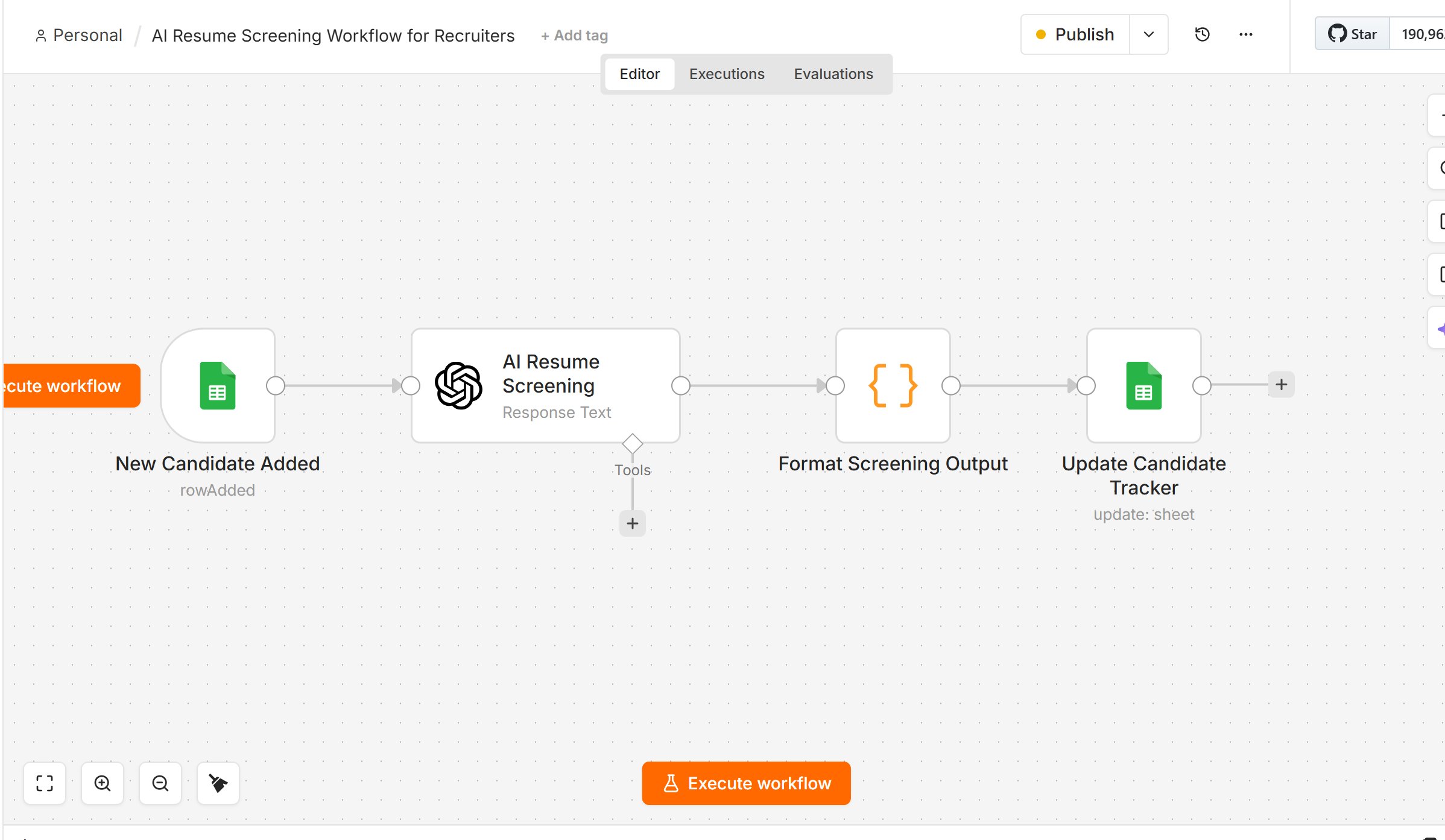
Here is the complete flow, from a new candidate row to a finished screening inside your tracker:
Step-by-Step Setup
Step 1 — Create the Tracker Google Sheet
Create a Google Sheet and name it AI Resume Screening Tracker. It has two groups of columns: the input columns you fill in for each candidate, and the AI output columns that n8n writes back automatically. Set them up in this order, left to right:
Input columns — you fill these in
| Column | What It Stores |
|---|---|
| Candidate Name | The candidate's full name |
| Candidate's email address | |
| Phone | Contact number (format as plain text so it isn't converted to a number) |
| LinkedIn URL | Link to the candidate's LinkedIn profile |
| Job Title | The role being screened for |
| Job Description | The full JD the resume is compared against |
| Resume Text | The candidate's resume pasted in as plain text |
AI output columns — n8n fills these in
| Column | What It Stores |
|---|---|
| AI Match Score | 0–100 score generated by the AI |
| Fit Category | Strong Fit / Good Fit / Average / Not Suitable |
| Matching Skills | Skills on the resume that match the JD |
| Missing Skills | Skills in the JD not found on the resume |
| Recruiter Summary | A short plain-English summary for the recruiter |
| Recommendation | Submit / Screen Further / Reject |
| Status | Marks the row as AI Screened once processing is done |
Step 2 — Add a Candidate
Fill in the seven input columns for a candidate — name, email, phone, LinkedIn, job title, the job description, and the resume text. Leave the AI output columns blank; the workflow fills those in. Adding the row is what kicks everything off.
Step 3 — Set Up the Google Sheets Trigger in n8n
In n8n, add a Google Sheets Trigger node. Connect it to your Google account, select the AI Resume Screening Tracker sheet, and set it to trigger on Row Added. Now every new candidate row runs the workflow automatically.
Step 4 — Send Resume Text + Job Description to OpenAI
Add an OpenAI node (this is the AI Resume Screening node in the diagram above). Use a Chat model — GPT-4o is recommended for accuracy. Feed it the Resume Text and Job Description from the new row, with a structured prompt that asks it to compare the two and return a match score, fit category, matching skills, missing skills, a recruiter summary, and a recommendation. The quality of your prompt directly determines the quality of your screening output.
Step 5 — Format the Screening Output
Add a Code or Edit Fields node (the Format Screening Output node) to parse the AI's response and map each value to the matching tracker column — score to AI Match Score, category to Fit Category, and so on.
Step 6 — Update the Candidate Tracker
Add a Google Sheets node set to Update Row (the Update Candidate Tracker node). Point it at the same row that triggered the workflow and write the AI output columns back in, then set Status to AI Screened. The recruiter opens the sheet and sees a fully screened candidate — no manual data entry.
What the AI Output Looks Like
Here is an example of what the AI generates for a Java Developer candidate already in the tracker. Each field maps directly to one of the AI output columns:
"candidate_name": "Rahul Sharma",
"ai_match_score": 82,
"fit_category": "Good Fit",
"matching_skills": ["Java", "Spring Boot", "REST APIs", "Microservices", "SQL", "Git", "Agile"],
"missing_skills": ["AWS depth / production experience", "scalable cloud backend architecture"],
"recruiter_summary": "Solid Java backend candidate with 6 years of experience and strong alignment to the core stack. Domain experience in banking and e-commerce. Main gap is that AWS exposure looks basic rather than strong.",
"recommendation": "Submit",
"status": "AI Screened"
}
n8n writes these values straight into the candidate's row. The recruiter opens the tracker, reviews the score and summary, and decides whether to call the candidate. The AI did the first pass — the recruiter makes the final call.
What Recruiters Can Use This For
- Initial resume screening — filter high volumes of applications quickly
- Candidate shortlisting — identify the top 3–5 profiles worth calling first
- Resume summaries for clients — generate clean submission notes automatically
- Recruiter notes and trackers — update candidate trackers without manual data entry
- Training projects — recruitment learners can build and test this as a hands-on practical
- Small staffing agencies — automate what normally requires a full screening team
Limitations to Be Aware Of
- AI may miss context — a candidate's project experience may not be captured fully in a text-based resume
- Resume text has to be added to the sheet — this version reads the Resume Text column, so the text must be pasted in first (a later Google Drive version can automate that step)
- Output quality depends on the prompt — a poorly written prompt produces unreliable screening results
- AI cannot assess communication or culture fit — those require a human conversation
- Never automate the final decision — AI assists the recruiter. The recruiter decides.
Why This Matters for the Future Recruiter
The future recruiter will not be replaced by AI. The future recruiter will be replaced by another recruiter who uses AI better.
The skills that will matter in recruitment over the next 5 years are not just Boolean search and sourcing. They include:
- Role analysis and JD interpretation
- AI prompt writing for recruitment tasks
- Workflow automation using tools like n8n
- Data-driven screening and shortlisting
- Human judgment applied on top of AI output
At StaffIQ, we are building training programmes that prepare recruiters for exactly this — not just the technical skills of today, but the AI-assisted workflow skills of tomorrow.
AI Resume Screening Workflow — Hands-On Workshop
Build this complete workflow from scratch — live, step by step, with real resumes and real job descriptions. StaffIQ is planning a practical hands-on workshop for recruiters and HR learners.